User Types & Access Model
Two people can sign in to the same DocLock and see completely different things — different menus, different dashboards, different buttons. That's by design. What you see is decided by your user type and your permissions. This page explains both.

The six user types (personas)
DocLock builds your Home dashboard and tailors your menu from your assigned user type. There are six built-in personas:
| User type | Focus | Typically sees |
|---|---|---|
| Super User | Full system overview | Everything — documents, workspaces, reports, administration, and a storage panel. |
| Executive Business Owner | Executive KPIs | Dashboard and Reports — high-level numbers and approvals. |
| Departmental Manager | Department command center | Dashboard, Documents, Workspaces, and Reports for their area. |
| Knowledge Worker | Personal productivity | Dashboard, Documents, and Workspaces to create, search, and collaborate. |
| Compliance & Legal Officer | Governance & compliance | Dashboard, Documents, Governance, and Audit Trail. |
| System Administrator | System administration | Users, roles, configuration, workflows, templates, attributes, system settings, and workspaces. |
Note: If an account's user type doesn't match one of these, DocLock falls back to the Knowledge Worker dashboard. Only the Super User dashboard includes the extra Storage Utilization panel.
Two levels of access (RBAC)
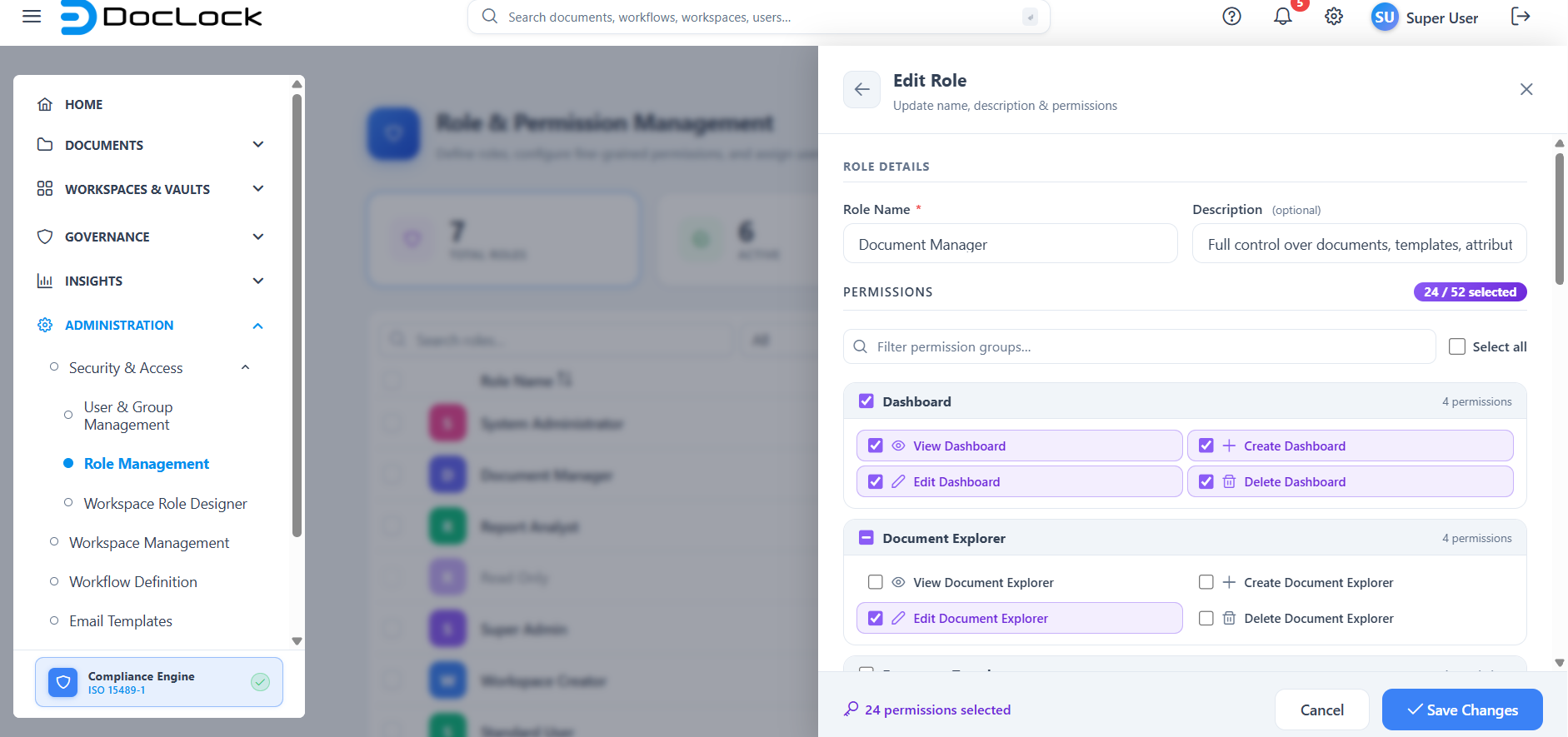
DocLock uses role-based access control (RBAC) at two levels that work together:
1. System-level permissions
These control which app areas you can reach. Examples include:
DOCUMENTS.VIEW,DOCUMENTS.SEARCH,DOCUMENTS.TRASH— seeing and searching documents.REPORTS.VIEW— opening reports.CONFIGURATION.VIEW,CONFIGURATION.WORKFLOWS— governance and workflow configuration.USERS.LIST/SYSTEM.MANAGE_USERS,ROLES.VIEW/SYSTEM.MANAGE_ROLES— administration.SYSTEM.MANAGE_SETTINGS,SYSTEM.MANAGE_WORKSPACES,SYSTEM.VIEW_AUDIT_TRAIL— system control.
If you lack the permission for an area, that area simply doesn't appear in your menu.
2. Workspace-level roles
Inside a specific workspace, your workspace role controls what you can do with that workspace's documents. The built-in workspace roles, from most to least capability, are:
| Workspace role | Can do |
|---|---|
| Owner | Everything in the workspace, including managing members and settings. |
| Manager | Manage content and members. |
| Editor | Create and edit documents. |
| Reviewer | Review and make approval decisions. |
| Commenter | Add comments. |
| Viewer | View and download only. |
These roles are cumulative — a higher role includes the abilities of the ones below it.
How the two levels combine
Think of it as two gates:
- System level decides whether you can get to documents/workspaces at all (and which app areas show in your menu).
- Workspace level decides what you can actually do once you're inside a particular workspace.
So you might have system permission to view documents, but only a Viewer role in the Finance workspace (read/download) and Editor in the HR workspace (create/edit). Same person, different abilities per workspace.
Why your screen differs from a colleague's
- Missing a menu item? You probably don't have the system permission for it — that's expected.
- Missing a button inside a workspace? Your workspace role doesn't include that action.
- Different dashboard? Your user type drives a different Home layout.
If you believe you should have more access, contact your administrator — roles and permissions are assigned in the Administration area.
Where to go next
- See exactly which screens make up each area in The DocLock Interface.
- Learn the underlying terms in Core Concepts & Terminology.