Set Up Your Account
After your first sign-in, take a few minutes to set up your account the way you like it. This page covers your profile, notifications, and appearance — the personal settings that make DocLock comfortable to use every day.
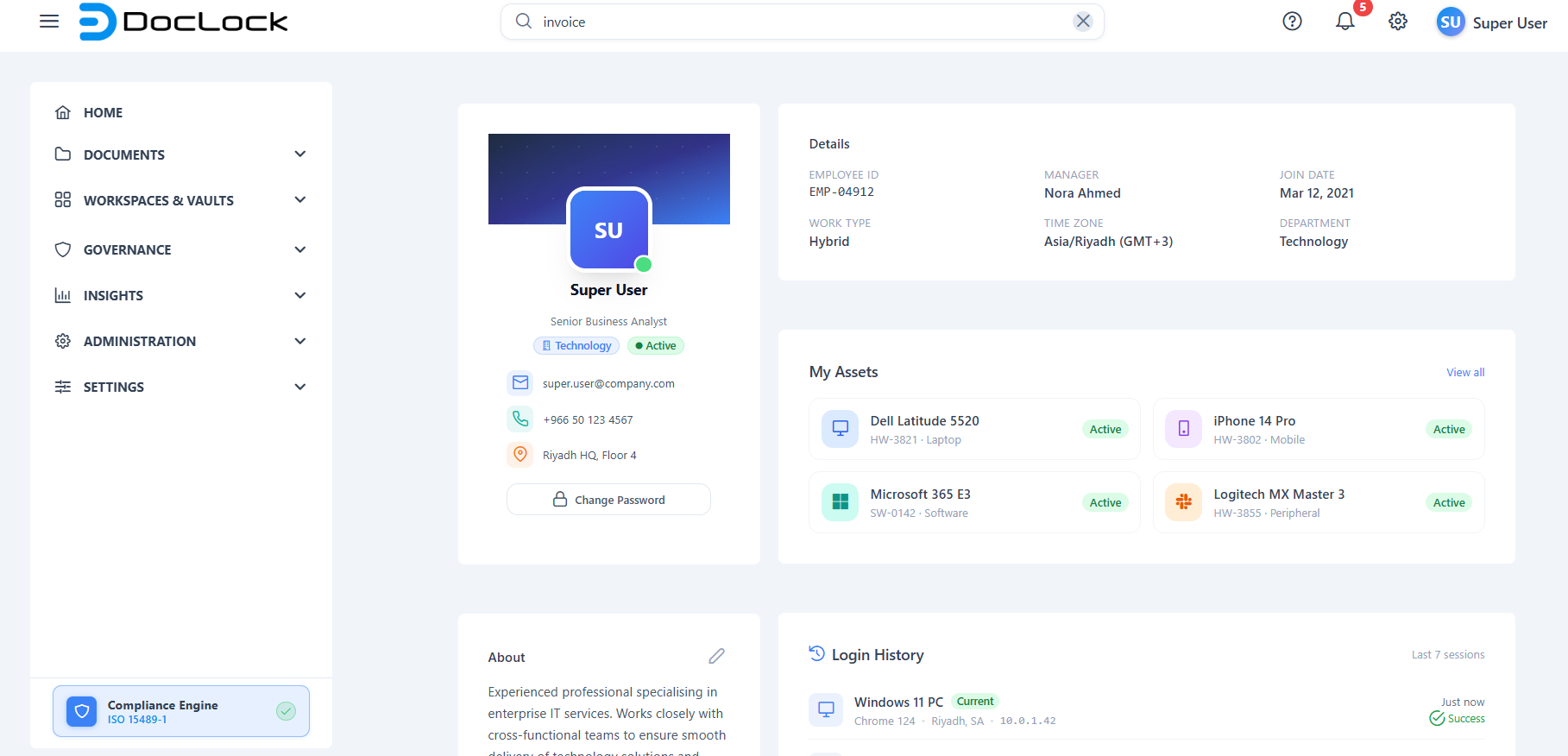
Open your profile
Click your avatar / profile menu in the top-right of the top bar, then choose Profile (or go to the Profile page). This is your own account page — no special permission is required.
On the profile page you can:
- See your name, email, role, and account details.
- Edit your About / profile details to keep your information current.
- Review your login history — a list of recent sessions, useful for spotting anything unexpected.
Note: Your role / user type is assigned by an administrator and isn't something you change yourself. If your role looks wrong, contact your administrator.
Change your password
On the profile page there's a Change Password panel where you can update your password.
Note: In this build, accounts are managed through the mock sign-in (any non-empty password is accepted), so the change-password form is shown for completeness but isn't wired to a live account store. In a production deployment, this is where you'd set a new password.
Set up notifications
DocLock keeps you informed with the notification bell in the top bar. A badge shows how many unread notifications you have, and clicking the bell opens a dropdown with recent items such as:
- Task notifications (something needs your attention),
- Reply notifications (a comment or response),
- Status updates (a document changed status), and
- System messages.

From the dropdown you can read items and use Mark all as read to clear the badge.
Note: Notifications appear in the in-app bell dropdown. Real-time push (SignalR) is disabled in this build, so notifications reflect the app's demo data rather than live server events.
Choose your appearance
DocLock includes appearance options so you can make the interface comfortable.
- Open the app configuration / theme controls (the settings/gear control in the top bar).
- Adjust the available options — such as light/dark theme, accent color, and menu layout.
- Your choice applies immediately.

Tip: Organization-wide appearance defaults live in Settings → General Settings → Appearance (admins only). Your personal theme choice sits on top of those defaults for your own view.
A quick checklist
- Reviewed your profile details and login history.
- Checked the notification bell and cleared anything you've read.
- Picked an appearance / theme you like.
That's it — your account is ready. Next, try a real task in Your First Workflow.