License & Subscription
DocLock doesn't have a separate activation wizard or a product key you type into your computer. Because it's a web application, licensing and subscription information is shown inside the app on a dedicated License screen. This page tells you where to find it and what's there.
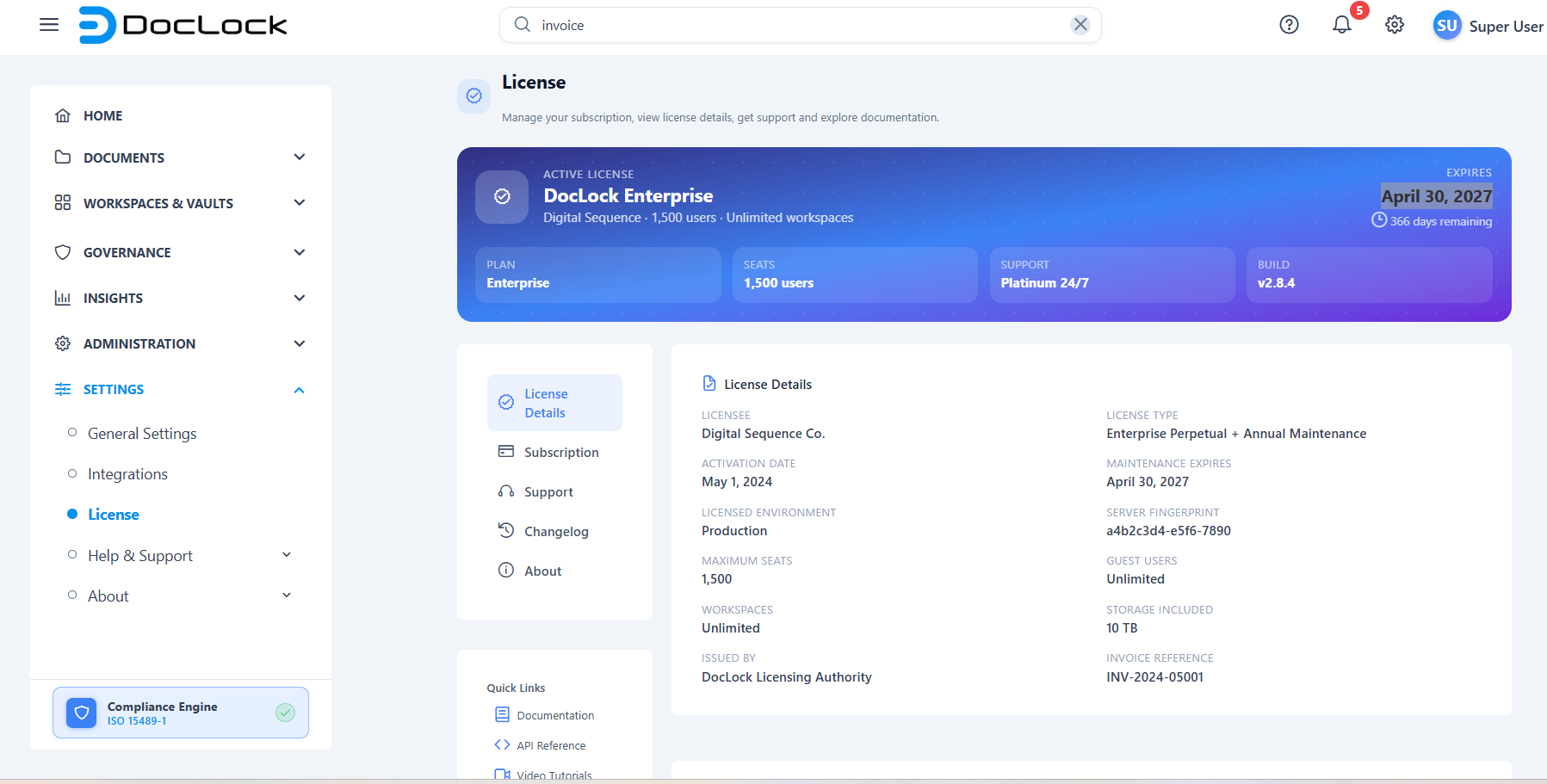
Where to find license information
Open the License screen from the left navigation menu under System → License, or go directly
to the route system/license-help.
Access: The License screen is open to any signed-in user — it has no special permission requirement, so you can always check your organization's license and support details.
What's on the License screen
The screen is organized into tabs:
| Tab | What it shows |
|---|---|
| License | Your organization's license details. |
| Subscription | Subscription/plan information. |
| Support | How to get help and contact support. |
| Changelog | What changed across releases. |
| About | General information about this DocLock build. |
There's no activation step
To be clear about how this build works:
- ❌ There is no installer and no separate activation wizard.
- ❌ You do not enter a license key on your own computer.
- ✅ License and subscription details are simply displayed on the in-app License screen.
If your organization needs to change its plan or licensing, that's handled by your administrator and your DocLock vendor — not through an on-screen activation form.
Note: This build runs with a mock backend, so the License screen presents informational/demo content. In a production deployment it reflects your organization's actual license and subscription.
Related pages
- About → Version shows build details and release notes.
- Help → Contact Support lets you reach the support team if you have licensing questions.